Creative Studio
Translate this page
Computers and Technology Page
Terms & Conditions of Use
3D Printing
- Only filament provided by Campbelltown Library may be requested.
- Campbelltown Library may refuse or cancel any prints deemed inappropriate, obscene, or illegal.
- Campbelltown Library makes no guarantees of quality, patron assumes responsibility for the outcome of the print.
- Library staff will not alter files or completed prints in any way. Your file will be printed as is; please make any necessary adjustments before submitting.
- When requesting a 3D print job, the print job may not be printed on the same day as the request. Please enquire with library staff for possible 3D printing dates (dates may vary based on capacity).
- If printing multiple files Campbelltown Library makes no guarantees that all files will be printed on the same day.
- Printing is done during library opening hours so we can keep an eye on your project. The maximum of hours a 3D print job is 10 hours.
- When at Campbelltown Library an induction is required, and a library staff member must be present during the time you are booked in the Creative Studio to use it. The staff member is there to run the 3D printer and set it up for use. Patrons are not to touch the 3D printer without the library staff member present and must follow direction from the library staff member present. To get a staff member to be present you must contact the library via email minimal 2 days in advance (availability will be based on capacity and alternative dates may need to be provided if staff aren't available).
- When at Eagle Vale, Ingleburn and Glenquarie library the print job is to be given to a library staff member as a gx. file for the flash forge 3D printer after using flashprint5 software or the sliced 3MF, STL or OBJ. Have the file saved on a USB and hand it in to the front desk where they will give you a request form with colour preference and contact details needing to be filled in.
- If not booked into the Creative Studio and if you don't have a staff member present (only available at Campbelltown library the other branches you must give the file to a staff member on a USB for them to print) you will not be able to use the 3D printer. For Campbelltown Library you must book the Creative Studio to use the 3D printer and request a staff member as mentioned above.
Sewing Machines
- A short safety induction must be completed before the first time you use the sewing machine.
- Please bring the supplies you need for your project.
- Staff will not be available to teach you how to sew.
- Age restrictions apply:
- Children under 12 years cannot use the sewing machines.
- Children aged 12-15 years require adult supervision.
Laser Cutter
- Only materials provided by Campbelltown Library may be requested.
- Pricing may very based on material type.
- Campbelltown Library may refuse or cancel any request deemed inappropriate, obscene, or illegal.
- Campbelltown Library makes no guarantees of quality, patron assumes responsibility for the outcome of the request.
- Safety procedure signing is to be followed at all times.
- The air filter must be turned on, and fire extinguisher must be present when the laser cutter is in use (a fire extinguisher is located in the Creative Studio where the laser cutter is kept).
- If errors are found before the laser cutting process begins, patrons will be informed and need to make the appropriate corrections themselves. Some of these errors may involve high risk of fire.
- When at Campbelltown Library an induction is required, and a library staff member must be present during the time you are booked in the Creative Studio to use it. The staff member is there to run the laser cutter and set it up for use. Patrons are not to touch the laser cutter without the library staff member present and must follow direction from the library staff member present. To get a staff member to be present you must contact the library via email minimal 2 days in advance. Booking for the laser cutter will be a maximum of 90 minutes for laser cutter use per week (subject to staff availability).
top
Campbelltown City Libraries offer two creative studios for public use. The general-purpose Creative Studio at Campbelltown Library is equipped with STEM and media technology, while Ingleburn Library features a sound-resistant podcasting studio. Both spaces provide access to specialized equipment to help bring your creative ideas to life.
Who can book?
• Library members aged 16 years and over
• Bookings are available for up to 4 hours per session
• Users must be working on a creative project
• Maximum group size is 6 people
Booking specialised equipment
• Laser cutter and 3D printer bookings are limited to one 90-minute session per member per week
• A library technician is required for the duration of these bookings
• Material charges apply ($5-$15); only library-supplied materials may be used
• Staff confirmation is required, and bookings must be made at least 48 hours in advance
Make a booking
• Book online to reserve a Creative Studio
• For specialised enquiries, email: [email protected]
• For more information, phone: 02 4645 4444
• Read the full Terms& Conditions here.
HJ Daley Creative Studio
Campbelltown HJ Daley Creative Studio
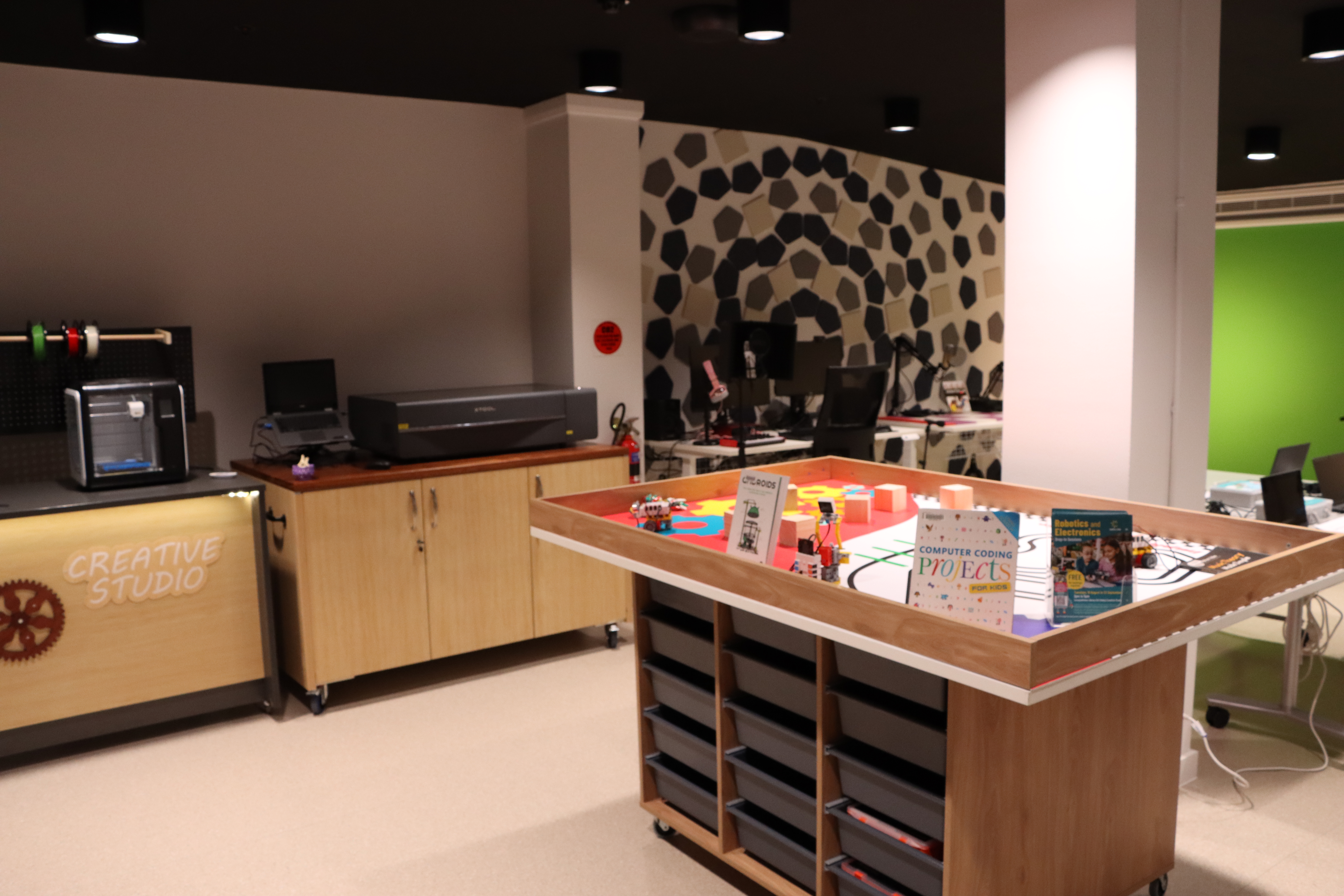
The Creative Studio at Campbelltown is a bookable space with equipment available for you to record, edit, design, and create your next project.
We have a range of equipment including:
Creative Studio PC
The Creative Studio PC is powered by a Mac mini loaded with Adobe Creative Suite software, Blender, and Logic Pro X for all your digital creating and editing needs.
Equipment provided for the Creative Studio PC include:
- A micro phone
- Focusrite Audio Interface (perfect for use with the guitar).
- Akai MPK mini Mk3 portable key and pad.
- Wacom graphics tablet
Green Screen
Create your own background with an image or video using post-production techniques.
Two spotlights are provided to assist with lighting up the green screen for the best post-production results.
Podcast Station
Needing to create a podcast?
Come use our Zoom PodTak P8 Podcast Recorder for all your podcasting recording needs. This is set up with 2 head sets and 2 microphones for recording on to an SD card.
Once recording has been completed, please transfer the recording to your own device and then clear it off the SD card before returning it to the Zoom PodTak.
3D Printing
The possibilities are endless with 3D printing, print models, toys, art or other objects here at the library. There are 3D printers at all Library branches ready for you to use. Please contact staff to book in for the 3D printer and check when staff are available for it to be used.
How does it work?
3D printers print objects in thin layers from the bottom up. To make it work we give the printer instructions for how to build the item using a slicer program, these programs take a 3D file (.obj .stl) and slice it into layers. These layers create the characteristic ridged surface of a 3D printed object and can be removed with sanding or careful use of a heat gun.
What can I print?
We can help you 3D print almost anything; for ideas have a look at Thingiverse for free downloadable 3D models, or to make your own 3D objects try Tinkercad, a free online design site. We also have 3D modelling software available on the Creative Space PC.
The only limits are your imagination (and the size of the machine)
How much does it cost?
The cost of 3D printing is calculated per hour, rounded to the nearest hour as $5 for each print.
What is the quality like?
We have a Flashforge Adventurer 3 3D printer at every branch that can print in layers of 100 microns up to 500 microns - the lower the number, the better the quality. Remember that higher quality prints take more time and will cost more as a result. The maximum print size is 150mm (L) X 150mm (W) X 150mm (H)
At Campbelltown Library we have a Bambu Lab X1 Carbon the maximum print volume is 256mm (L) x 256mm (W) x 256mm (H). The Bambu can also print in layers of 100 microns up to 500 microns.
What material do we use?
We use plant-based PLA bio filament made from renewable sources. It doesn't smell as much as other plastics and is better for the environment, as it can be industrially composted.
You will be able to choose one colour for your print. Currently available colours are: White, Black, Red, Yellow, Green, Teal, Purple, Orange, Pink. Each branch has a different range of colours. Please contact the library branch you wish to print at to confirm.
How do I get started?
Once you have a 3D model to print, you'll need to "slice" it. Our Flashforge 3D printer uses Flashprint software and our Bambu 3D printer uses Bambu Studio software. Both can be downloaded for free, and accessed from our Public PCs.
- Load your 3D model into Flashprint or Bambu Studio and adjust its size, make sure the model is touching the base, and add supports or a raft if necessary (Supports are recommended. Please use a raft if your supports touch the build plate.)
- All that's left is to start slicing and select the quality level you want: Fast, Standard, or Fine. Faster prints have more noticeable ridges, higher quality prints will take longer.
- Save your sliced file (this should be a .gx for the Flashforge 3D printer and a .g file for the Bambu 3D printer) to a USB and bring it into the library to be printed. Staff will schedule your print job and contact you when it is ready for pick-up.
How long does it take?
When you submit your design, we will give you an estimate of when you can expect it to be complete and will contact you once the print is ready for pick-up.
The length of time the print itself will take can be seen with the slicing software after you have sliced your project.
How do I collect my 3D model?
When your model has printed, we will let you know by phone or email. It will be available to be collected from the library. We can only keep your finished model for three weeks. After the 3-week period the print job is disposed of.
3D Scanner
Come and use our 3D scanner the Ein Scan SP V2. The 3D scanner takes photos of your object while it turns on the turntable to make a digital 3D model.
How to set it up?
The 3D scanner needs to be plugged into the device it's being used on before starting up the program. You can use a provided device or download the software provided that it has 32GB RAM for the application to work properly. Calibrate the scanner to get the best quality image and select how many photos you want the scanner to take to get the best quality 3D model.
Please be aware that this device is only suitable for items of a certain size. Too small or big and it won't scan properly. Ask staff about subtility of an item if you're worried.
Laser Cutter
The Creative Studio at Campbelltown houses a X tool laser cutter with a 60cm × 30cm bed size for you to engrave, score and cut your next project.
What material does the laser cuter use?
We currently have 3mm and 6mm plywood and coloured acrylic. Ask a staff member about getting a sheet for your next project. All material for the laser cutter must be ordered through the library as we won't use materials that people bring in from home. Library staff can help you with finding different materials that we can order in.
How much is it to use the laser cutter?
You only pay the cost of materials. Material cost varies from the type of material you are requesting. Discussions with staff will confirm the exact price.
How do I create my design?
Use the Xtool Creative Space software that is available on the Campbelltown library Creative Studio PC or download it off the internet.
Sewing Machine
- Have a project you would like to sew?
- Need to fix a ripped seam?
- Need to hem up your new outfit?
- Want to sew up your own curtains or cushions?
You can book in a time to visit our libraries to use one of our sewing machines.
How can I make a booking?
Call us on 02 4645 4444 so we can ensure a sewing machine is available for you.
Canon EDS 90D Camera
Looking to take pictures on a high-quality camera. We have a Canon EDS 90D that can be used while hiring out the Campbelltown Creative Studio. To use it you'll need to request it from staff so that it can be loaned out to you while you are using the Creative Studio.
How do I get my photos from the camera?
We have a SD card reader adaptor as one of our accessories that you can use to upload your photos on to your own device or send them to yourself through the Creative Studio PC.
What equipment can be used with the camera?
There is a tripod that the camera can stand on. The lights and green screen that are provided can be used for special affects as well as the lights have different cool and warm settings and all the fun backgrounds that can be made with a green screen.
Click here to book the HJ Daley Creative Studio.
Greg Percival Digital Studio
Ingleburn Greg Percival Creative Studio
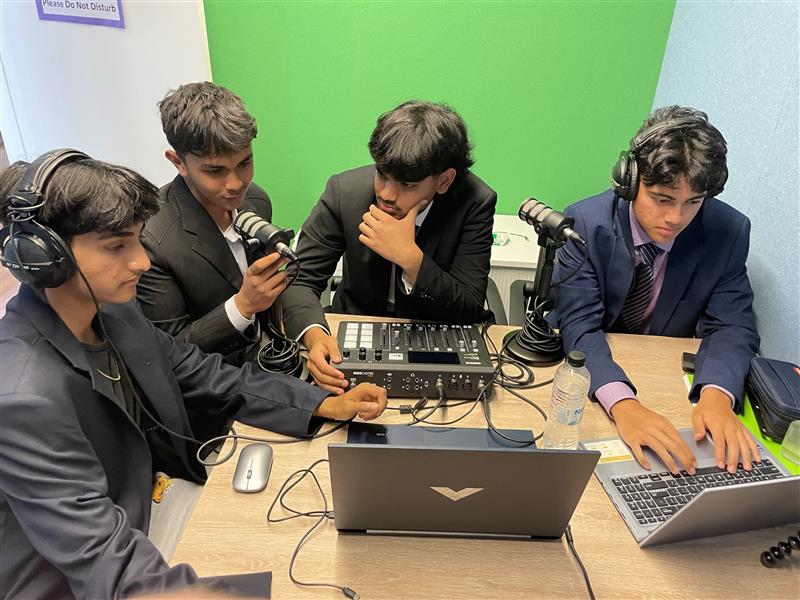
Sound dampened and ready to record! Ingleburn Library's Creative Studio has everything you need to record and mix your own audio or explore Virtual Reality.
This studio boasts:
Creative Studio Laptop
The Creative Studio Laptop is powered by a MacBook loaded with Adobe Creative Suite software, and Blender for all your digital creating and editing needs.
Podcast Station
The Ingleburn Recording studio is built as a small sound podcast studio with all the equipment to go with it. This includes:
- Blue Yeti Podcasting Microphones
- Røde PodMic Microphones
- Rødecaster Pro Podcast Production Studio
- Podcasting Headphones
- Meta Quest 2 VR Headset
All equipment can be requested to be brought out by a library staff member when the room is reserved.
Canon Powershot Digital Camera
A Canon Powershot Digital Camera is available for use when requested by a staff member in the Ingleburn Creative Studio when you reserve it.
How do I get my photos from the camera?
The camera has an accessory cord that can be used to transfer the photos on to your own device or on to the MacBook which you'll be able to send to yourself from there.
What equipment can be used with the camera?
The camera can be used alongside the green screen.
Green Screen
Create your own background with an image or video using post-production techniques.
VR Headset
Immerse yourself into virtual reality with our Meta Quest 2 VR Headset.
Click here to book the Greg Percival Creative Studio.
INFO
Book online to reserve time in a Creative Studio, for more information phone 02 4645 4444 or email us.